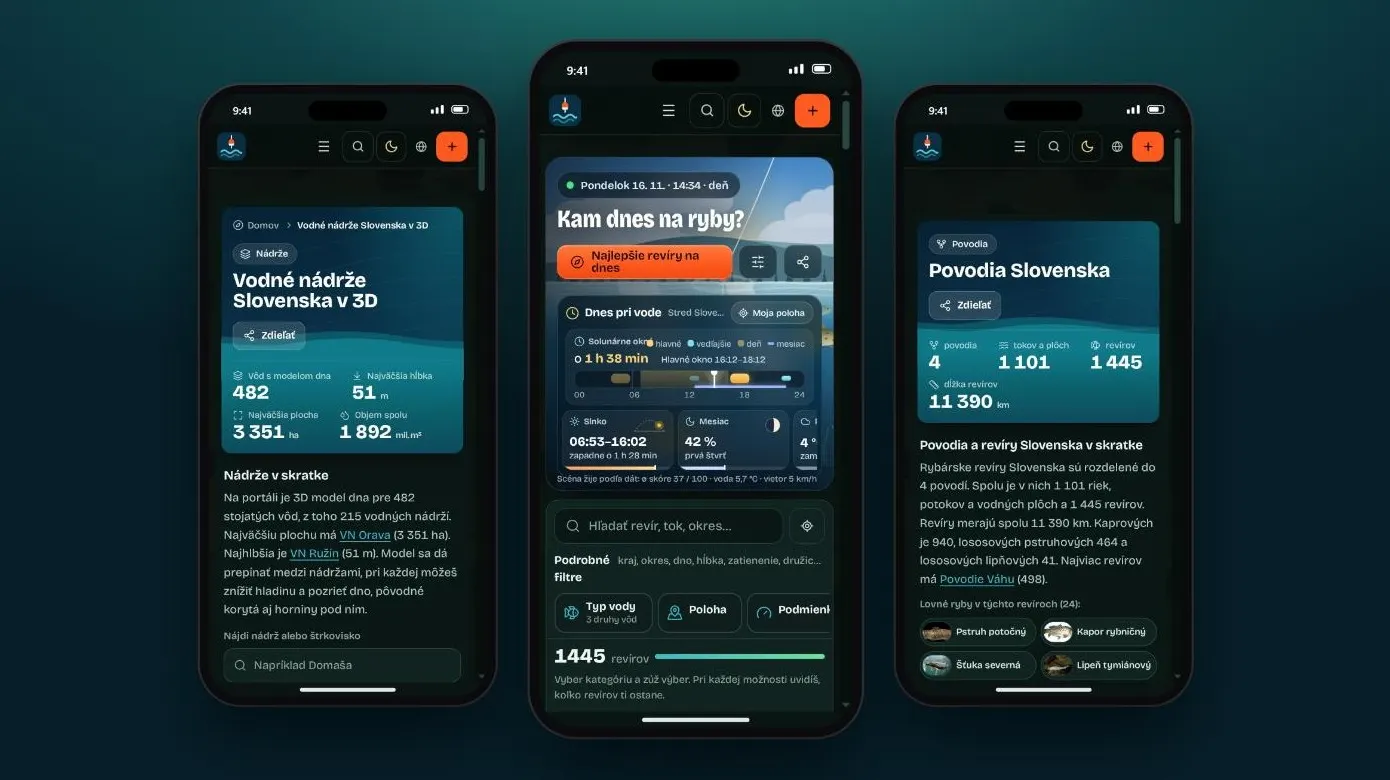
You are by the water, dawn is breaking and you want to know quickly what the water level is and whether it is windy. Hunting for the right browser tab on your phone at that moment is no fun. That is why you can add Rybárstvo.sk to your home screen as an app: one tap on the icon and you are on the fishing district map, in full screen and without typing the address.
In short
- Nothing is downloaded from an app store and you don't even need an account.
- Three taps in the browser are enough, on Android and on iPhone.
- It is the same portal as in the browser and it is always up to date, so there is nothing to update.
Browser tab or home screen icon?
Technically it is a web app (PWA). It differs from an ordinary browser tab in small things you will appreciate by the water:
| Browser tab | Home screen icon | |
|---|---|---|
| Opening | You look for the tab or type the address | One tap on the icon |
| Screen | With the browser bar and address | Full screen, more room for the map and charts |
| Quick shortcuts | No | On Android, by pressing and holding the icon |
| Catch photo from the gallery | You upload it in the form | On Android, via Share straight into the form |
| Push notifications on iPhone | No | Yes |
| Updates | Automatic | Automatic |
The shortcuts lead to Fishing district map, River basins and fishing districts, Fishing district ranking and Reservoirs in 3D. A photo shared from the gallery opens straight in the Add a catch form.
Android: three taps
The quickest way is the button right on the portal:
- Tap the menu (☰) in the portal's top bar.
- At the very bottom of the list, choose “Add to home screen”.
- Confirm in the browser window. The icon appears on your home screen.
If you don't see the button, or prefer the browser's own way, use the browser menu:
- Open rybarstvo.sk in Chrome. Edge, Firefox and Samsung Internet work too; the items in their menus have similar names.
- Tap the menu ⋮ (three dots) in the top right corner.
- Choose “Add to Home screen”. Depending on the browser version it may be called “Install app”.
- Confirm with the Add or Install button. The icon appears on your home screen.
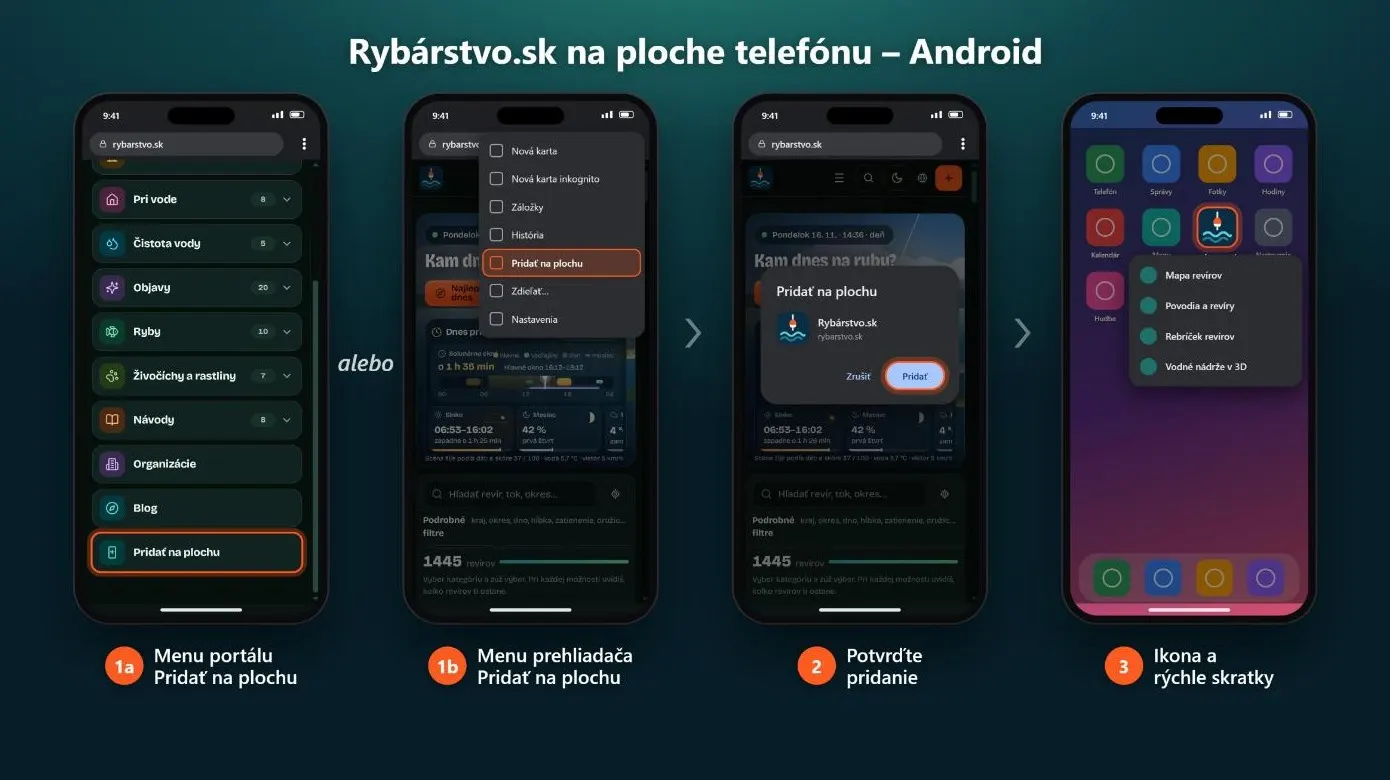
Tip: Once it is added, press and hold the icon on your home screen. It offers shortcuts straight to the fishing district map, river basins, the ranking and reservoirs in 3D.
iPhone and iPad: via Safari
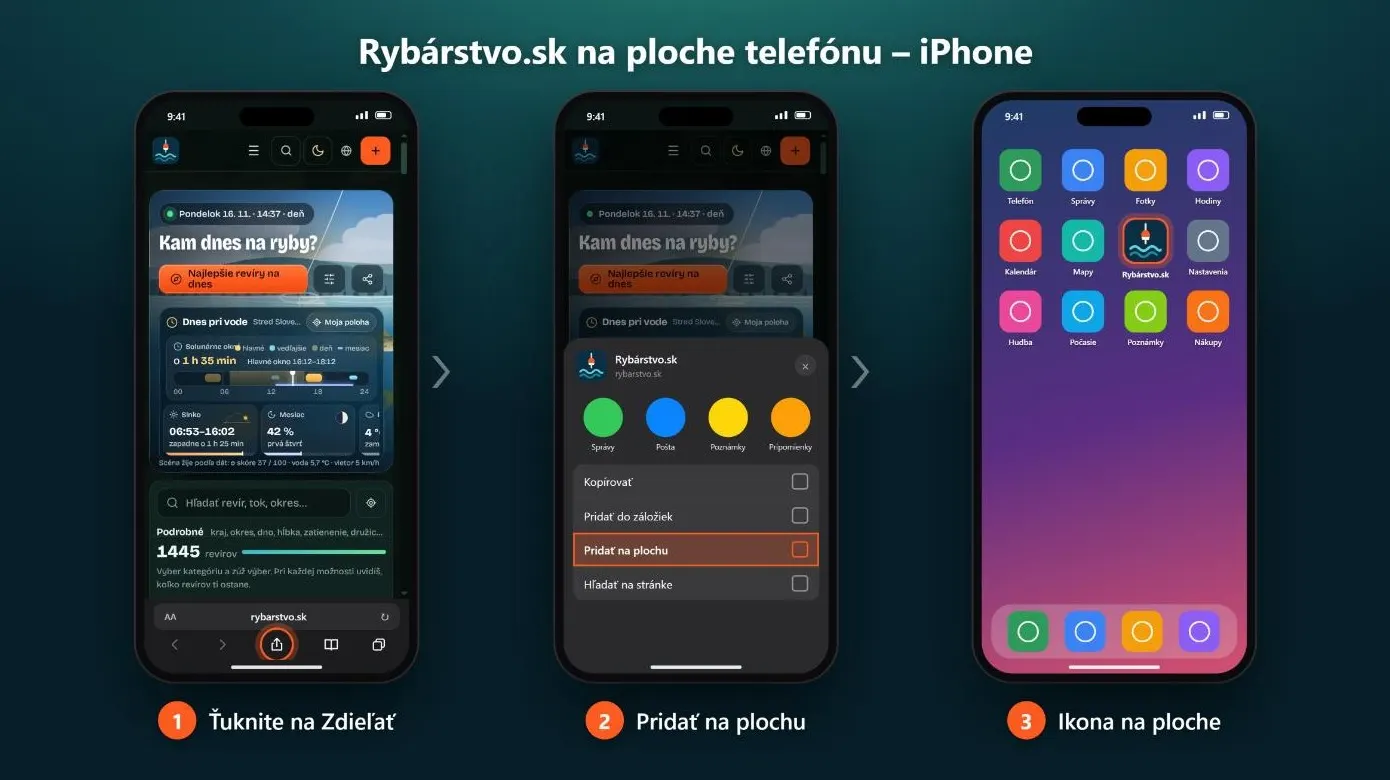
The quickest way is the “Add to home screen” button in the portal menu (☰); you will find it at the very bottom of the list. In Safari, tapping it shows a guide with the individual steps. You get the same result the native way via Share:
- Open rybarstvo.sk in Safari.
- Tap Share (a square with an arrow pointing up). If you don't see it in the bar, try the ⋯ menu next to the address.
- Choose “Add to Home screen”. If you don't see it, scroll further down the list.
- Confirm with Add. In iOS 26, leave the switch that opens the page as a web app turned on.
We recommend Safari. Chrome and Firefox on iPhone can also add the page to the home screen, but the shortcut may open as an ordinary browser tab rather than as an app.
On a computer
In Chrome and Edge, an install icon appears on the right side of the address bar. Click it, confirm, and the portal opens in its own window. In Safari on a Mac (macOS Sonoma and later), use File and Add to Dock.
Alerts when conditions are good
Once signed in, you can turn on alerts about good conditions at your favourite fishing districts in your profile. They come by email or as a push notification to your phone or computer, at most once a day per fishing district, and they are free. On iPhone, push notifications only work in the app added to the home screen, which is where adding it pays off the most. How the conditions are rated is explained in the methodology.
If the option doesn't appear
- The button in the portal menu only appears on mobile and only in a browser that supports installation (Chrome, Edge, Samsung Internet, Safari on iPhone). If you don't see it, use the browser menu as described above.
- Browsers usually don't offer installation in a private (incognito) window.
- The app may already be added; check your home screen or your list of apps.
- On iPhone, use Safari; in other browsers the steps may differ.
- Update your browser; older versions may not support installation.
Frequently asked questions
Is it free?
Yes, adding it to the home screen costs nothing.
Does it take up a lot of space?
Almost none; it is just a shortcut to the portal, not a downloaded app.
Do I need an account?
No. You can add the portal to your home screen without signing in; an account is only useful for catches, favourite fishing districts and alerts.
Does the app work without the internet?
No, it has no offline mode. The map, water levels and weather need a connection; without it you only see a notice that you are offline. If there is no signal at the water, check the important things in advance.
Does the app ask for any permissions?
Not when you add it. The browser only asks for location or notifications when you use them.
How do I remove the icon from the home screen?
Just like any other app: press and hold the icon and choose to remove it. Only the shortcut on the home screen is removed; your profile and catches stay as they are.
Does it also work on iPad and on a computer?
Yes. On iPad the same way as on iPhone, via Safari; on a computer via the install icon in Chrome and Edge or via Add to Dock in Safari on a Mac.
Having trouble adding it? Tell us in a comment which device and browser you are using, and we will help.
More articles
 Guides and tipsHow to use the portal to find out whether it is worth going fishing todayConditions score, water temperature, water levels and the law today: what each figure means and how to read them together. · 3 min read · Redakcia Rybárstvo.sk
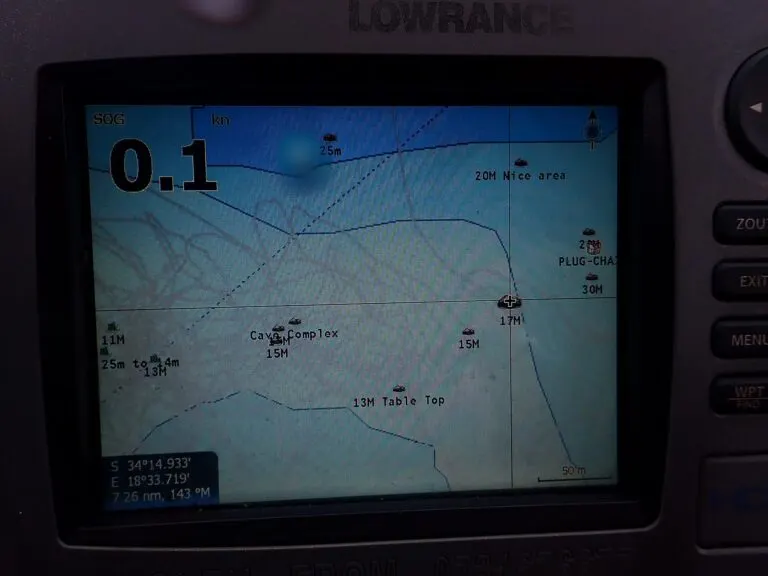 Portal newsHave an echo sounder? Help map reservoir and river bedsEcho sounder logs can now be uploaded to the portal. We use anglers' measurements to refine the 3D bed models, and we never publish tracks or fishing spots. · 3 min read · Redakcia Rybárstvo.sk
 Portal newsWelcome to the Rybárstvo.sk blogThe blog is a place for stories from the water, experiences from fishing districts and portal news. Any logged-in angler can write for it. · 3 min read · Redakcia Rybárstvo.sk
Have your own story from the water or a proven method? Write it up and we will publish it under your name.
Leave a comment